Surface and light
Compare Flat, Round and Bevel surface candidates. Adjust the light direction and strength.
 Icefox ✦ Lab
ASEPRITE EXTENSION v0.4.0
Try a new light on flat-color pixels.
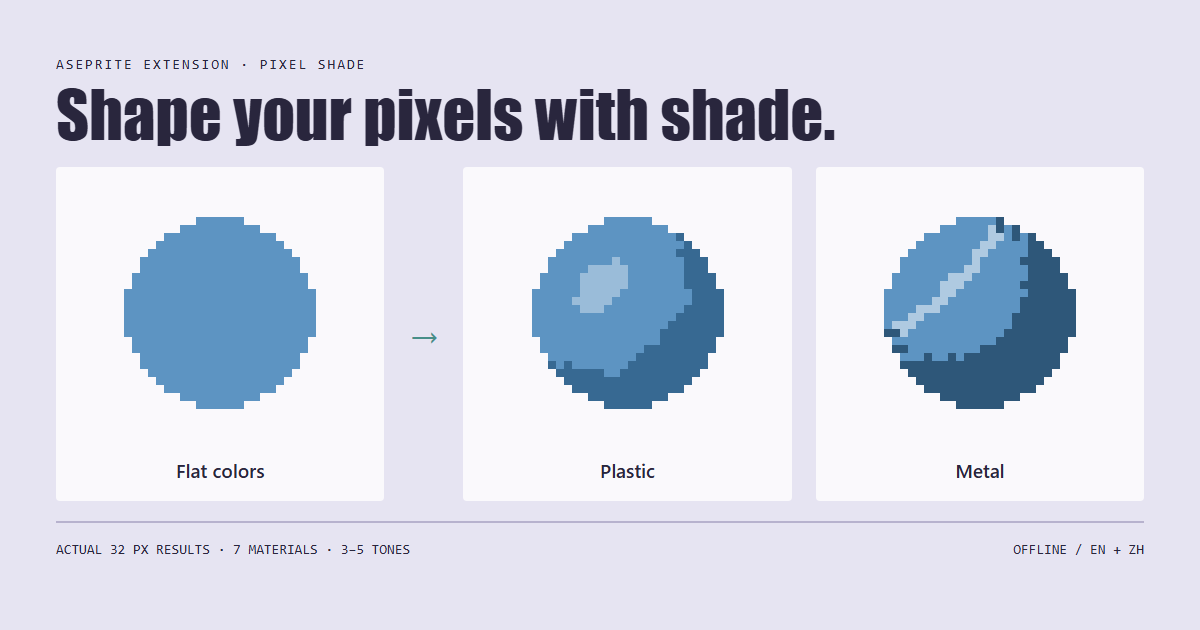
Select a pixel object, compare shadows, highlights and material previews, then apply to a layer and keep retouching by hand. Designed for small, mostly flat-color props and icons.
Offline plugin prototype · English / 中文 UI · Aseprite 1.3 stable+
PREVIEW, THEN APPLY
Compare Flat, Round and Bevel surface candidates. Adjust the light direction and strength.
Choose 3, 4 or 5 tones per source color, including the original. Optionally replace the lightest tone with a white highlight. The original palette is not guaranteed to stay locked.
Apply to the current layer, or output separate shadow and highlight layers. It does not automatically identify object faces or cast ground shadows; complex shapes still need manual cleanup.
THE WORKBENCH
Each selection is a separate edit. Later lighting changes do not automatically relight previous applications. For semi-transparent art, start with current-layer mode. Separate-layer output has opacity, blend-mode, parent-group and cel Z constraints; see the included guide.
Read the official feature and usage notes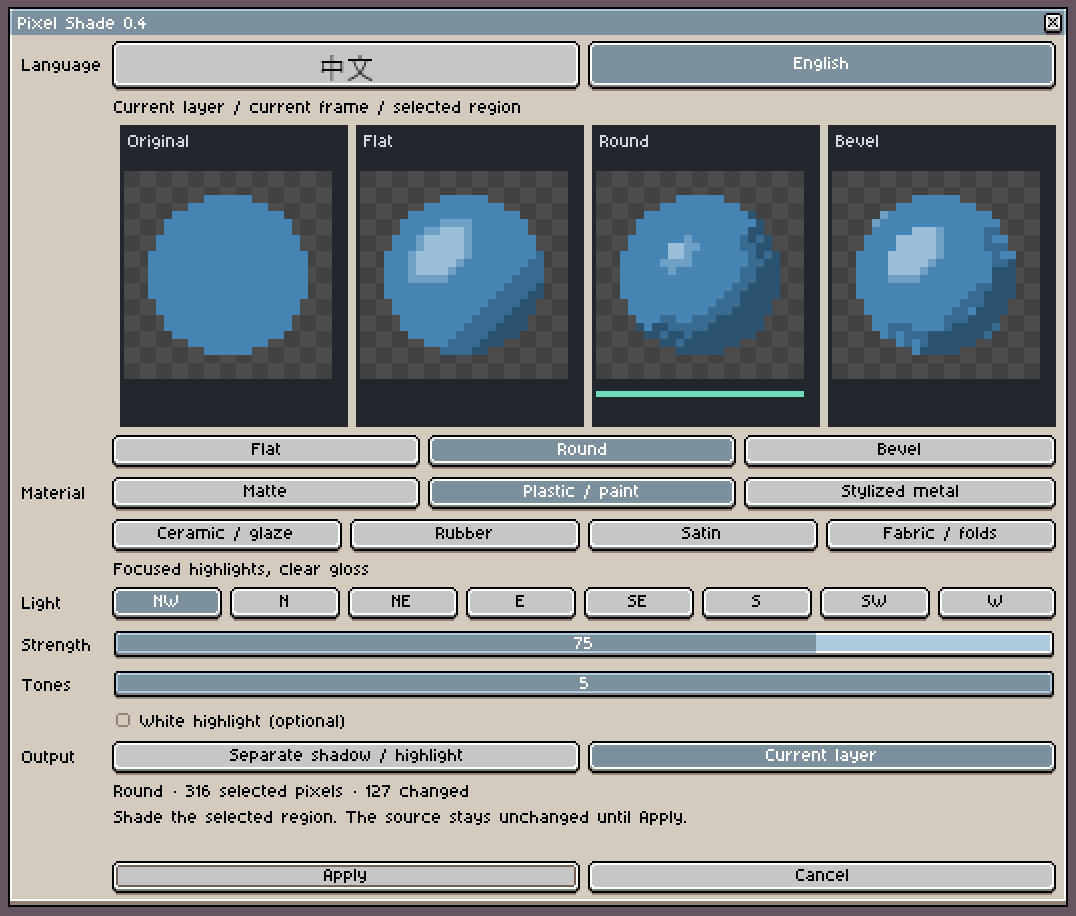
SEVEN MATERIAL STYLES
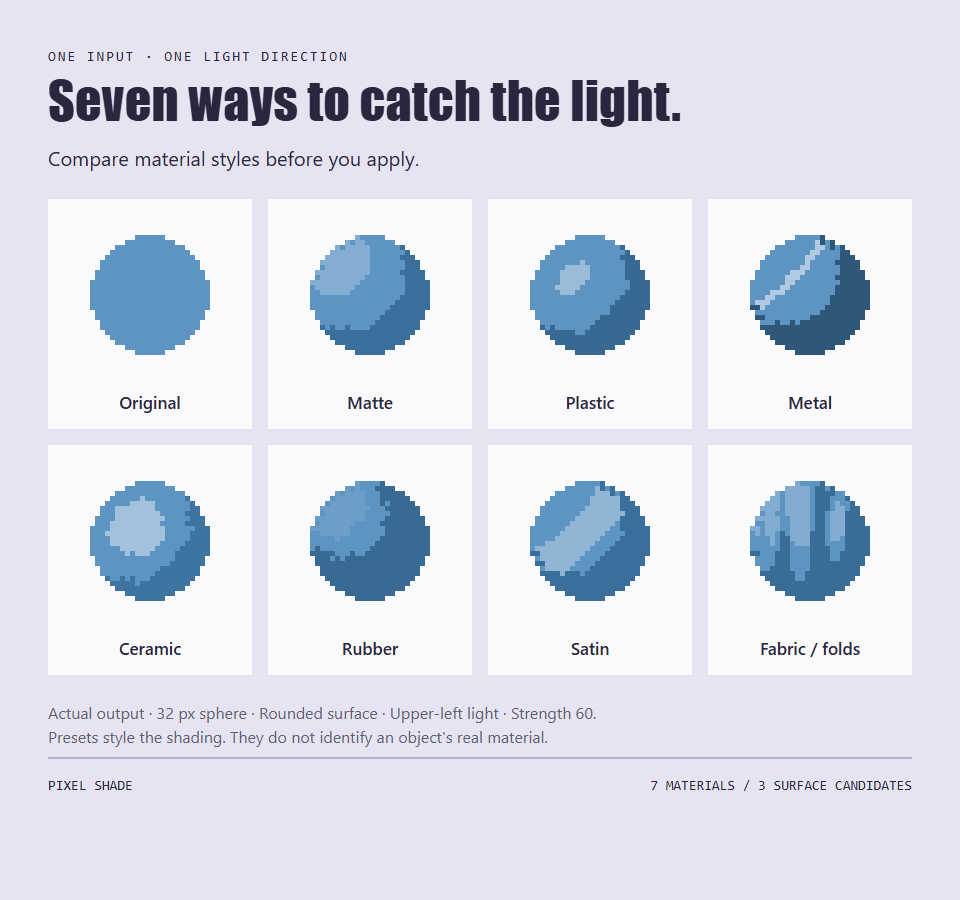
These are stylized candidates, not a physical simulation. Fabric / folds is experimental.
CURRENT SCOPE
CHOOSE FOR YOUR TASK
If you want to paint light and shadow using a palette you have chosen, start with Aseprite’s built-in Shading Ink. It changes pixel colors along a selected color ramp as you paint with the left or right mouse button. Include the current base color in the selected ramp. You may not need another tool.
Pixel Shade takes a different approach: select a small, mostly flat-color object, compare generated surface previews, then apply a first pass and refine it yourself.
Use one of the bundled practice images rather than starting with a finished character. Work on a copy, use an RGB/RGBA pixel layer in the current frame, and select the whole object. Open Edit → Pixel Shade, compare the previews, and try current-layer output first. Inspect the edges and shading before bringing the result into your own artwork. Keep the full compatibility notes above in view: the 3, 4 or 5 tones apply to each source color, including the original, not to the whole image’s total color count.
This is a guide to the documented workflow, not a new independent runtime comparison or a speed benchmark. The interface and sphere examples above are existing published material, not results of this exercise.
START WITH A SMALL OBJECT
The official ZIP includes the plugin, a bilingual offline illustrated START-HERE.html guide and 22 practice images. Follow the included guide and the official listing for installation and detailed constraints.